How to record IPTV on VLC?
Said IPTV Engineering
Said IPTV Technical Architecture Desk

VLC is one of the most used applications for streaming IPTV channels. The VLC media player is a free and open-source, portable, cross-platform media player and streaming media server produced by the VideoLAN project. VLC is available for desktop operating systems and mobile platforms, such as Android, iOS, Tizen, Windows 10 Mobile, and Windows Phone. In this tutorial, we will show you how to record Live programs on VLC. How to setup IPTV on VLC media player?
How to record
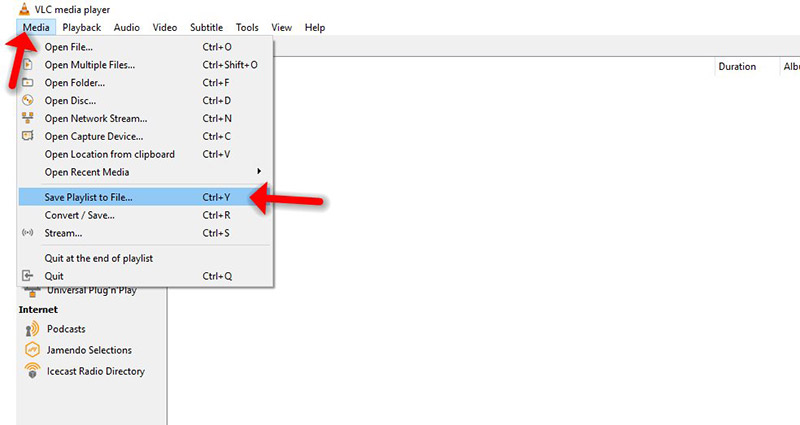
Step 1: To capture and record a video of your desktop to a file, click the “Media” menu in VLC and select Convert / Save.
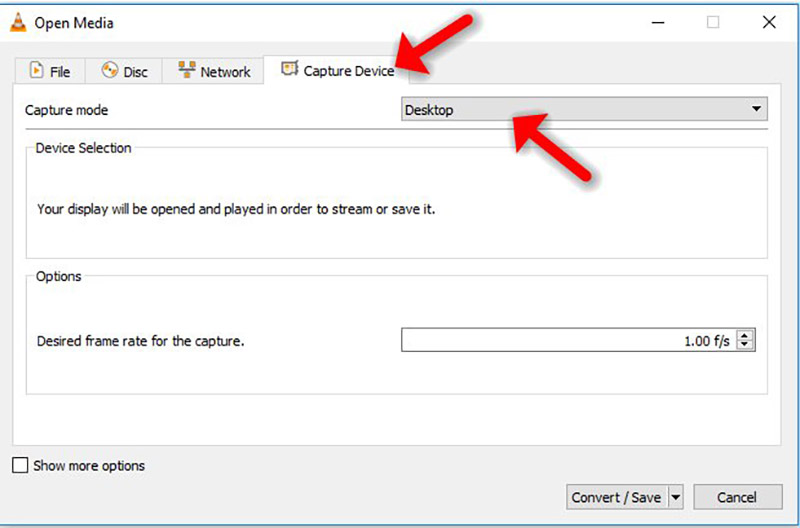
Step 2: Click the “Capture Device” tab and select “Desktop” from the “Capture mode” box.
Note: The default frame rate is one frame per second, which won’t appear very smooth. You’ll probably want to increase the frame rate. After you’re happy with the frame rate, click the Convert / Save button.
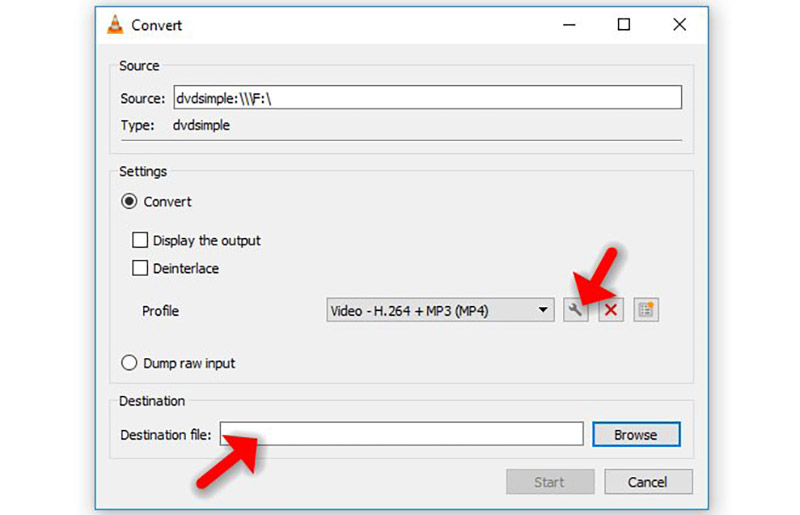
Step 3: Set a destination file in the Destination section. You can enable the Display the output checkbox to display the contents of your desktop in the VLC window while recording, but this isn’t necessary.
To adjust the resolution and video codec, click the edit button to the right of the Profile box.
You can also select a profile from the profile box and use it as-is, without editing it.
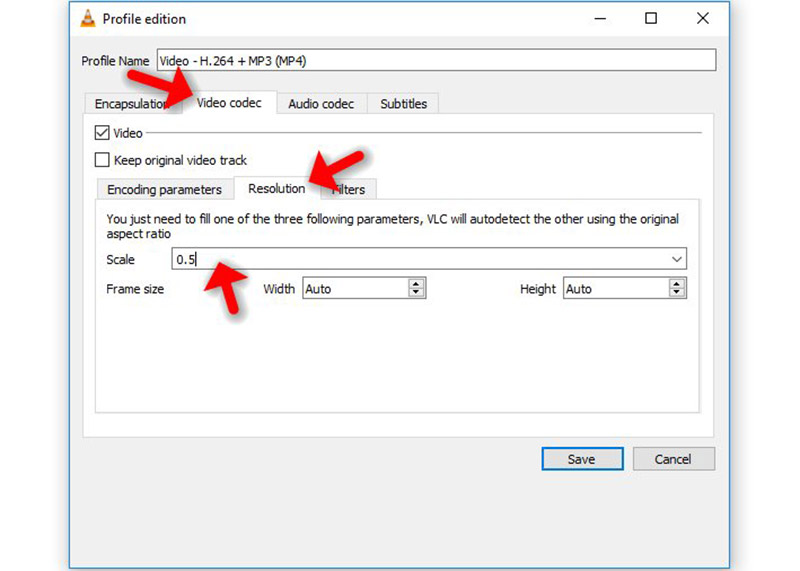
Step 4: Change the resolution by clicking over to the “Video codec” tab and using the options in the Resolution section. For example, you can use half your desktop’s resolution by typing 0.5 into the Scale box.
Step 5: After specifying your options, click the Save button and click the Start button.
VLC will inform you that it’s “streaming” your desktop to a file. Use your computer normally and VLC will record your desktop. When you’re done, click the Stop button.
Open your saved file to view the video of your desktop. You can send this file to others, upload it to YouTube, or do whatever else you like with it.
Developed by saidiptv.com
Stream Seamlessly with Said IPTV
Looking for a zero-buffering IPTV subscription for your device? Said IPTV delivers over 25,000+ live 4K/FHD channels, full beIN Sports, Botola Pro Inwi, Sky Sports, and a 120,000+ VOD library with instant WhatsApp activation.
Stream 25,000+ Channels with Zero Buffering
Get full access to beIN Sports, Botola Pro Inwi, 4K Cinema, and Netflix series in 5–15 minutes with local Moroccan payments (CIH, Attijariwafa, Cash Plus).
Related Tutorials & Guides
Wired Ethernet vs. 5 GHz Wi-Fi for IPTV: Which Is Best?
When setting up an IPTV service on a Smart TV, Firestick, or Android TV box, achieving a stable connection is critical for smooth, buffer-free streaming. While both Wired Ethernet and 5 GHz Wi-Fi offer more than enough raw speed for 4K and Full HD st
How to Fix IPTV Channels Buffering Only During Peak Hours?
Experiencing smooth, high-quality streams during the day, only for your channels to start buffering, looping, or freezing between 7:00 PM and 11:00 PM, is one of the most common issues with IPTV services. Because this buffering occurs strictly during
How to Test IPTV M3U url in a Web Browser?
Testing an M3U Playlist Link in a Browser If your provider only gave you a single, long M3U Playlist URL, you can test it directly in your browser. Analyzing the Result Developed by iptvhelpcenter.com