How to setup IPTV on “IPTV” Application?
Said IPTV Engineering
Said IPTV Technical Architecture Desk
Watch IPTV from your Internet service provider or free live TV channels from any other source on the web the “IPTV” Application (This is the name of the app and it is not referring to IPTV industry). If you are utilizing VLC media player to watch TV on your PC then this app is highly recommended to you. How to setup IPTV on VLC media player?
You can download this application from Google Play Store via a link below:
https://play.google.com/store/apps/details?id=ru.iptvremote.android.iptv&hl=en_US
How to add IPTV channels to “IPTV” Application
Step 1: You can start by downloading the app from the Google Play Store.
Step 2: Now click on the “EDIT“ on the bottom of your screen.
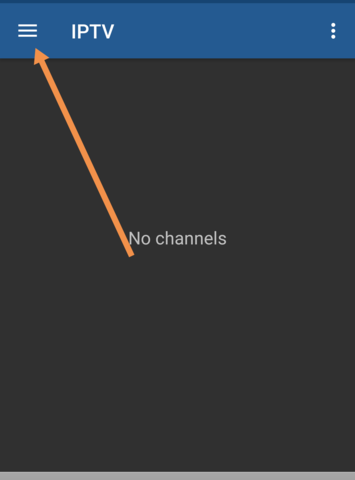
Step 3: Now click on “+“.
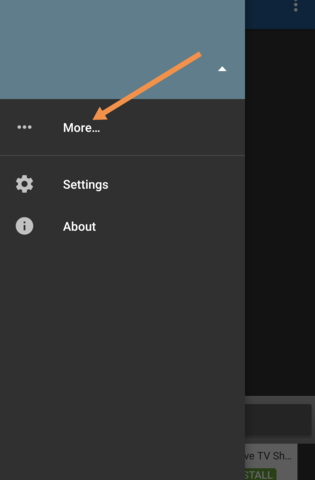
Step 4: Now click on “Add URL“. From here you can upload your M3U file or insert it via a URL. What is M3U?
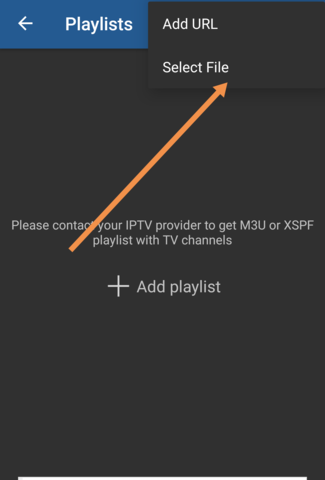
Step 5: After this, the channel list will be displayed on your screen and before playing the channels you will be asked to download a supported player such as IPTV core player or MX player.
Note: we highly recommend that you download the VLC media player from the google play store and choose it as your streaming player to get advanced options.
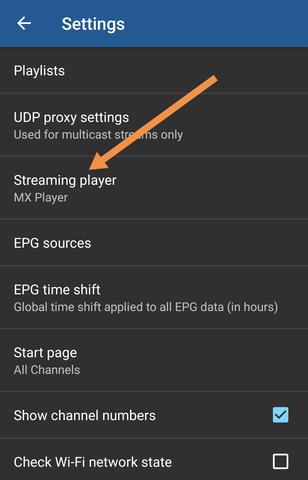
Step 6: Now select the VLC player for the better viewing experience.
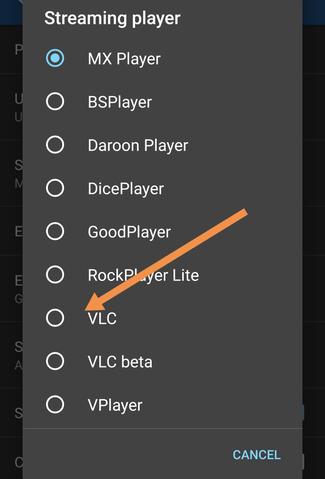
You will be asked to download the app and after the download process is finished, you can start streaming your IPTV channels.
Let us know in the comments section below about your opinion and feedback concerning this article and help us improve the quality of our articles. Thank you in advance.
Features of “IPTV” Application
- M3U and XSPF playlists support
- Playlists history
- Playing multicast streams with UDP proxy (proxy need to be installed in your LAN)
- Grid, list or tile view of TV channels
- EPG support in XMLTV and JTV formats
Additional features are available in Pro version: - Ad-free
- Ability to auto-reconnect to the streaming server when the connection is closed unexpectedly (HTTP streams only).
- Start the app on device boot option, useful for set-top boxes.
- Auto-play last channel option
- Extended playlists history
Developed by saidiptv.com
Stream Seamlessly with Said IPTV
Looking for a zero-buffering IPTV subscription for your device? Said IPTV delivers over 25,000+ live 4K/FHD channels, full beIN Sports, Botola Pro Inwi, Sky Sports, and a 120,000+ VOD library with instant WhatsApp activation.
Stream 25,000+ Channels with Zero Buffering
Get full access to beIN Sports, Botola Pro Inwi, 4K Cinema, and Netflix series in 5–15 minutes with local Moroccan payments (CIH, Attijariwafa, Cash Plus).
Related Tutorials & Guides
Wired Ethernet vs. 5 GHz Wi-Fi for IPTV: Which Is Best?
When setting up an IPTV service on a Smart TV, Firestick, or Android TV box, achieving a stable connection is critical for smooth, buffer-free streaming. While both Wired Ethernet and 5 GHz Wi-Fi offer more than enough raw speed for 4K and Full HD st
How to Fix IPTV Channels Buffering Only During Peak Hours?
Experiencing smooth, high-quality streams during the day, only for your channels to start buffering, looping, or freezing between 7:00 PM and 11:00 PM, is one of the most common issues with IPTV services. Because this buffering occurs strictly during
How to Test IPTV M3U url in a Web Browser?
Testing an M3U Playlist Link in a Browser If your provider only gave you a single, long M3U Playlist URL, you can test it directly in your browser. Analyzing the Result Developed by iptvhelpcenter.com