How to setup IPTV on Smart TV via Smart STB?
Said IPTV Engineering
Said IPTV Technical Architecture Desk
Smart STB is an android app which can be installed on Samsung, LG, Philips and many other Smart TV`s. This app enables you to have IPTV service on a portal just like MAG setup boxes with all characteristics that can be expected from MAG and Stalker Portal. What is MAG?
This app is available for many devices in different stores like Google play, Amazon webstore, Samsung Tizen, Smasung and etc, you can see in the image all of the stores.
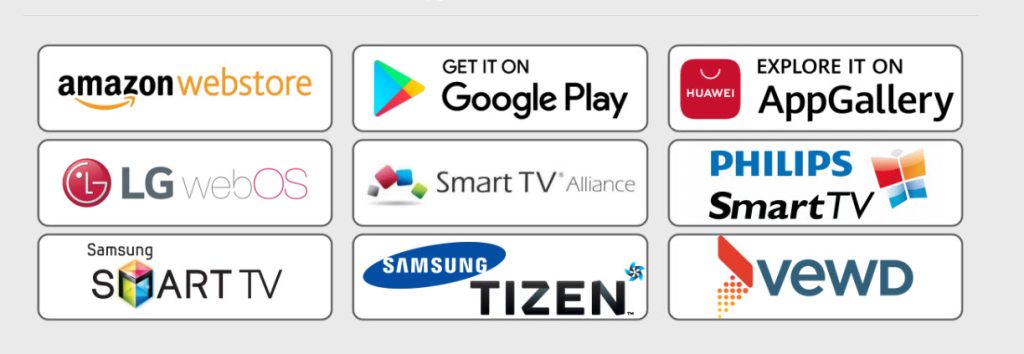
You can download Smart STB for different platforms in their website:
https://www.smart-stb.net/
Activation of the Trial period
Step 1: From the app market on your smart tv search, find and install Smart STB App.
After that, we can initiate the time for testing. To do that we first need to discover the Software MAC Address which is required for application activation on Smart-STB site. What is the MAC?
To find Software MAC address do as instructed below:

After loading in the main page to to “Setting” then “Smart STB Settings“.
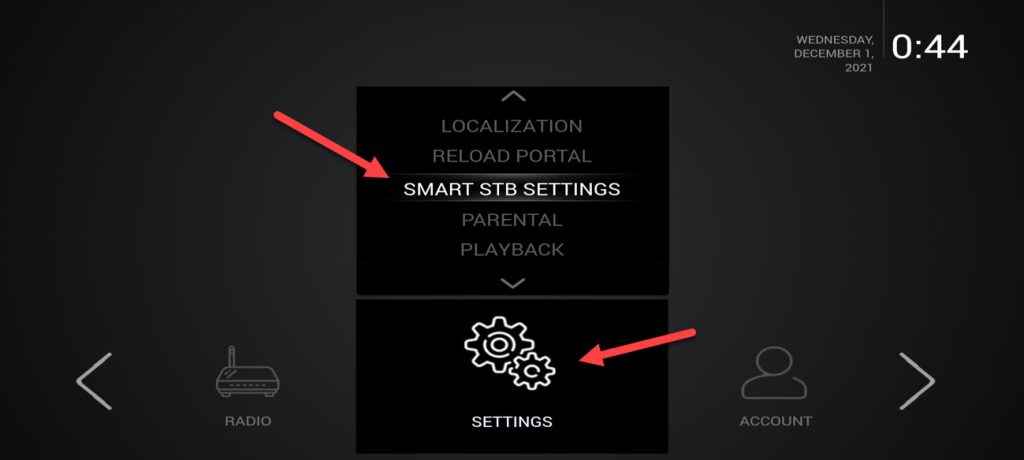
Now select “Device Info“.
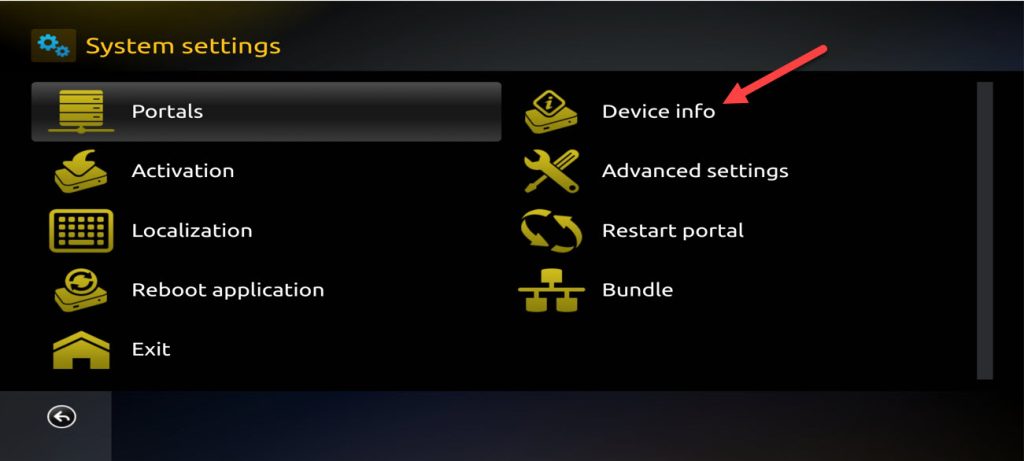
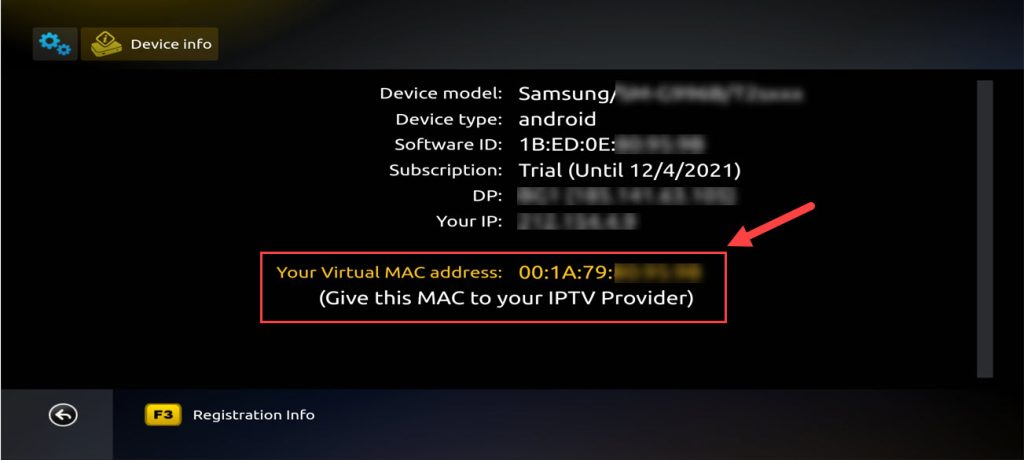
Here you will be presented with a few information about the device and the Mac addresses.
Software MAC address which is required for app activation on Smart-STB website.
Virtual MAC address which is required for IPTV service activation on your IPTV provider server.
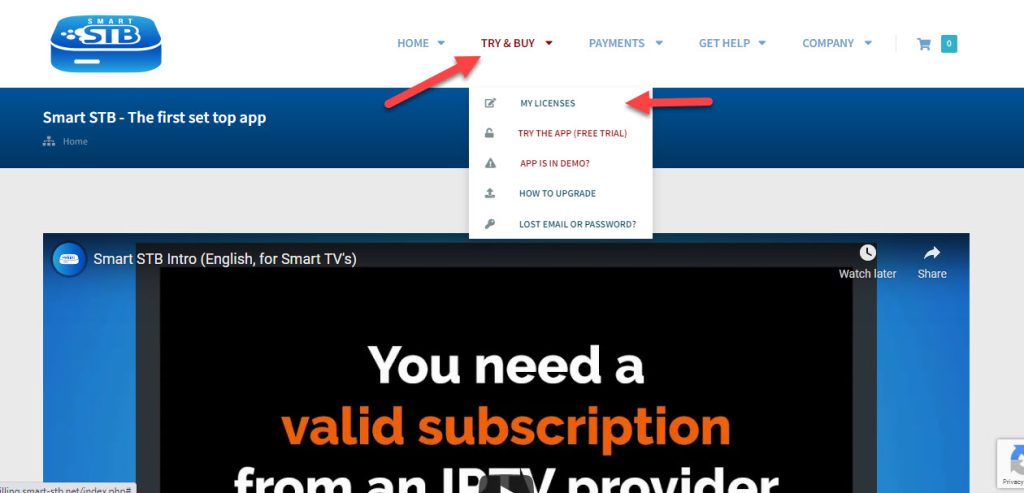
Step 2: Now that we understand the needed MAC address info, it is time to activate the app trial period. First, log onto the trial activation page of Smart-STB website by opening this URL:
https://www.smart-stb.net/
In homepage of Smart STB website click on “TRY & BUY” then “MY LICENSE“
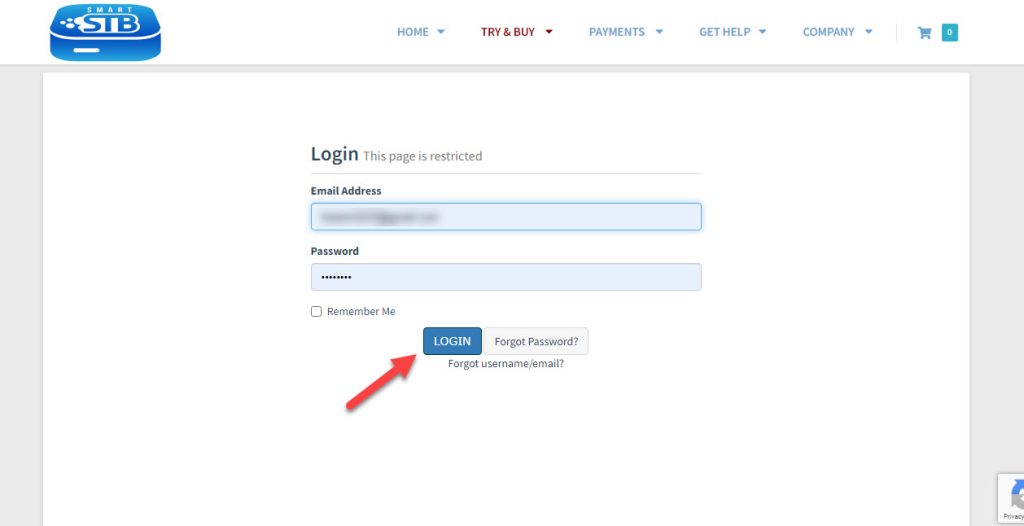
Step 3: You require to register on their website eventually. So if you have not registered at the moment, we recommend that you do. https://smart-stb.net
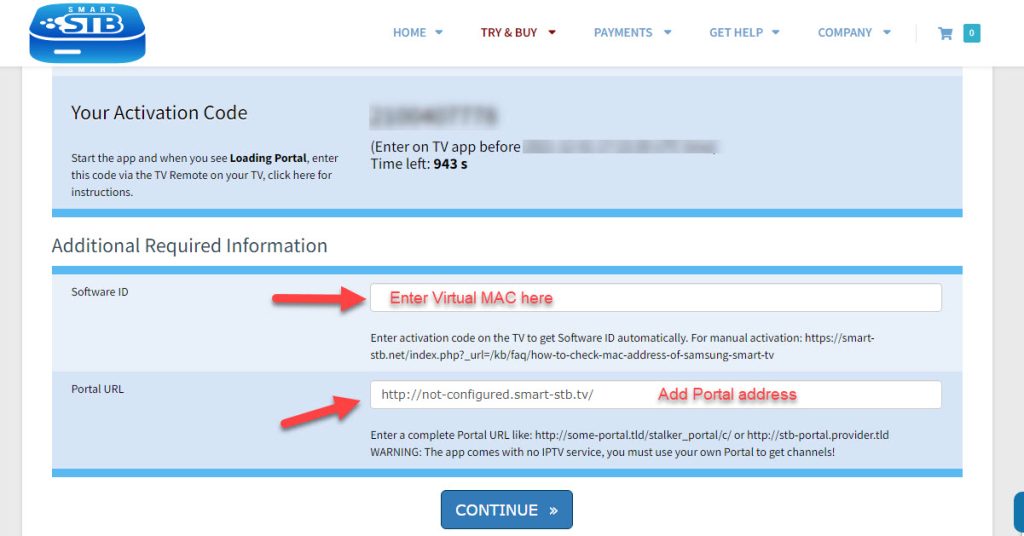
Now you need to add your Virtual MAC address and Portal address you received from your IPTV provider here and active your 7 days free trial for Smart STB app.
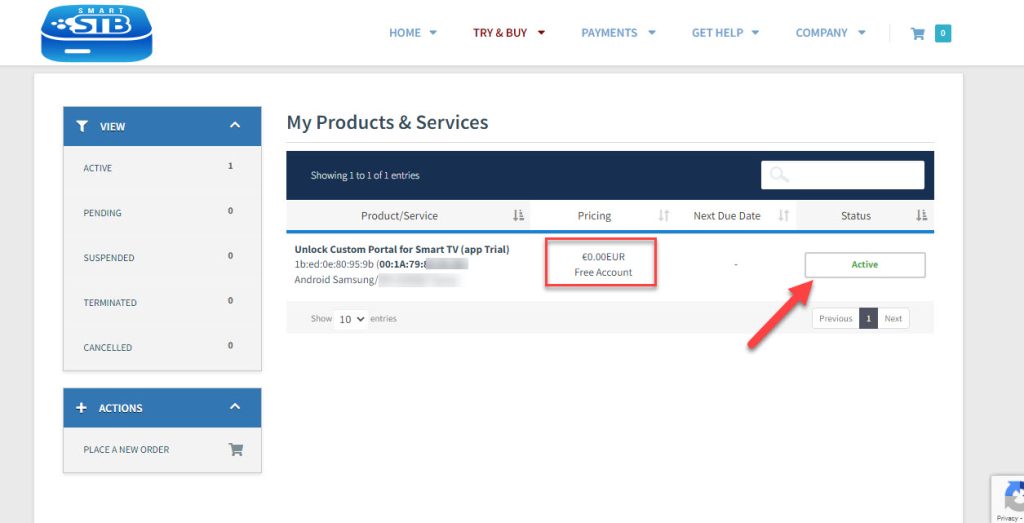
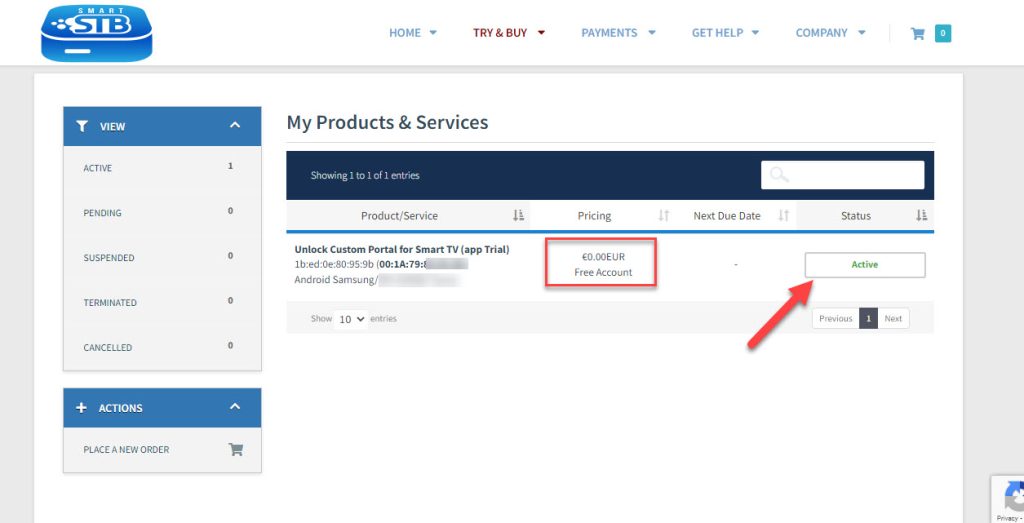
Now as you can see, Order Status is set as Active meaning the trial period has started.
Now if you head back to the “Device Details” page of the app on your TV where we previously visited, you`ll see the trial has started and an expiry date is indicated.
Activation of the paid licenses
Considering that Software MAC address and account registration on the Smart-STB side has already been done, upgrading to a paid license is very simple and easy.
Step 1: Log into the smart-STB website and go to “MY LICENSE“.
Clock on “Active“.
Step 2: Click on “Upgrade“.
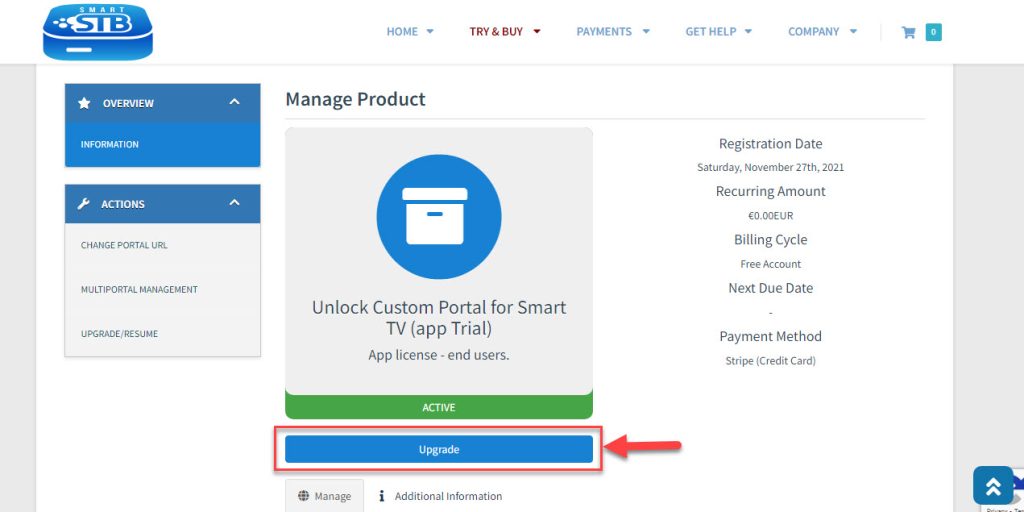
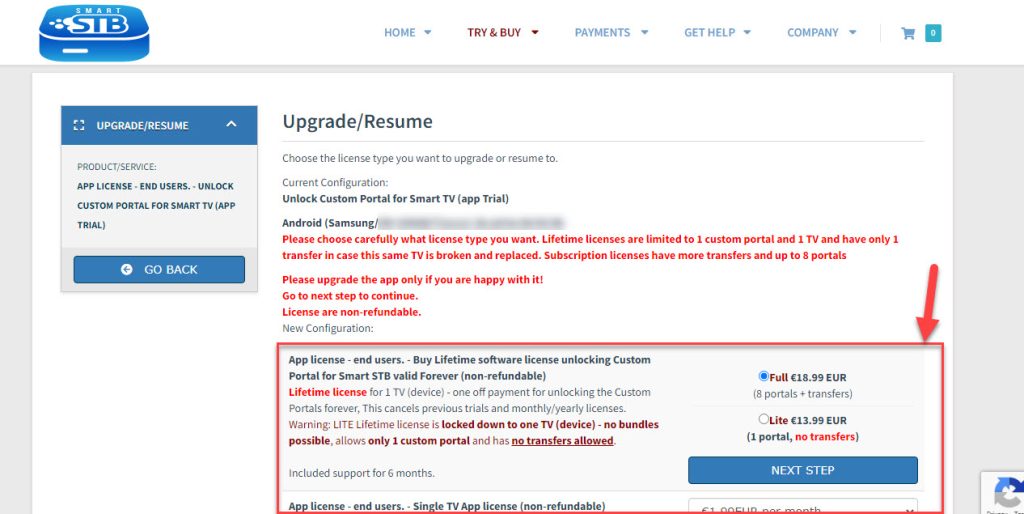
Step 3: These are the following paid monthly and yearly licenses to which you can subscribe.
For example, if you subscribe to the lifetime package, the subscription status in device info page will change to Paid and expire to Never since it is a lifetime subscription.
Add or Change Portal address on Smart STB
Now that the app has is activated, we need to input an IPTV source from a provider of your choice. From the device info page of the app, find Virtual MAC address and send it to the IPTV provider. They should register the MAC address on their system and provide you with a stalker portal URL. Once the portal URL is received, you can add the Portal address in 2 ways:
Add Portal directly on app
Just like the first time we did it above at the beginning of this tutorial, right after Loading Portal sign shows up, press enter. Then go to Smart STB Settings.
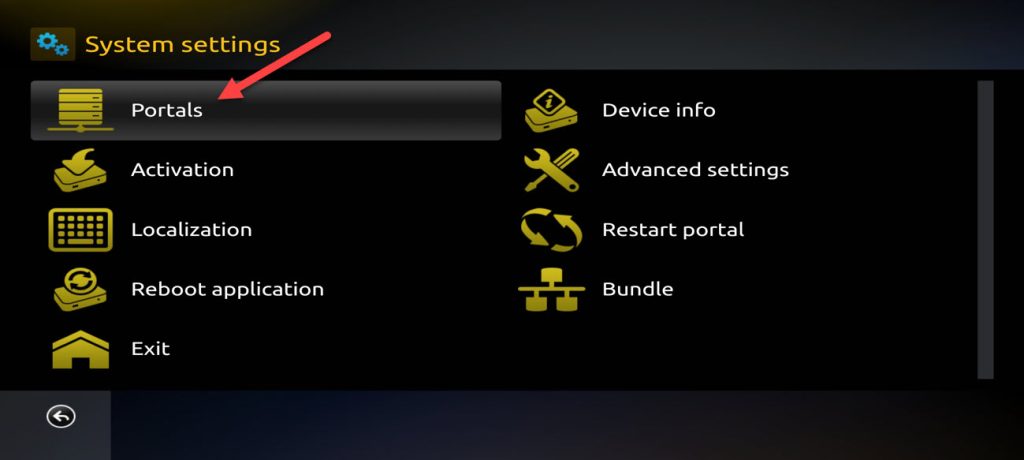
Now choose Portal as we need to input the portal URL. You can ask for MAG portal from your IPTV provider.
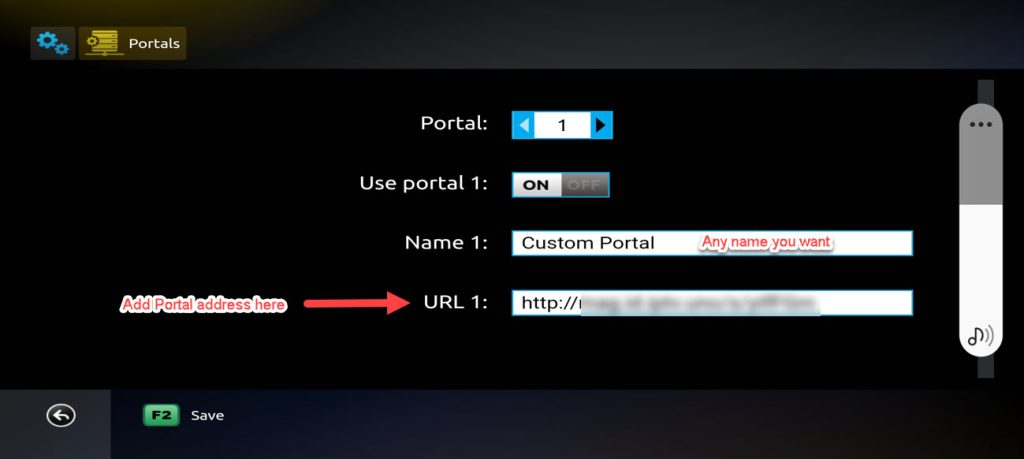
For Name 1 type the desired name for the main portal and in URL 1 input the URL you have been provided by the IPTV Provider you are subscribed to. Once done, press Save button on the remote controller. Going back to the preceding page, Restart Portal must be selected.
Next time you start the app, IPTV portal should load with bouquets and details of IPTV service ready to be used.
Add Portal on Smart STB website
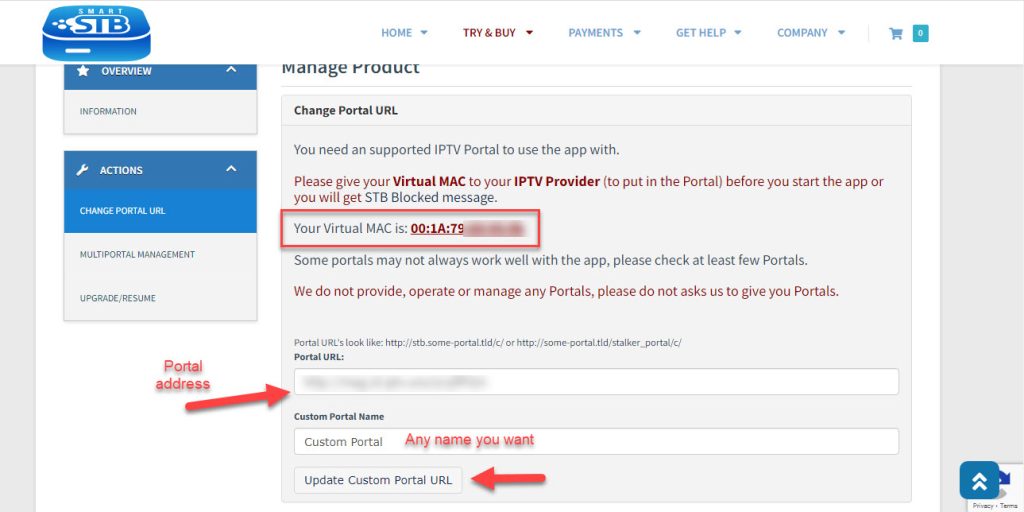
When you add Virtual MAC on Smart STB website we showed you where need to add the portal address.
Now if you want to change this portal address on website, please follow to “MY LICENSE” then “Active”
Now choose “Change Portal URL” in the bottom of page.
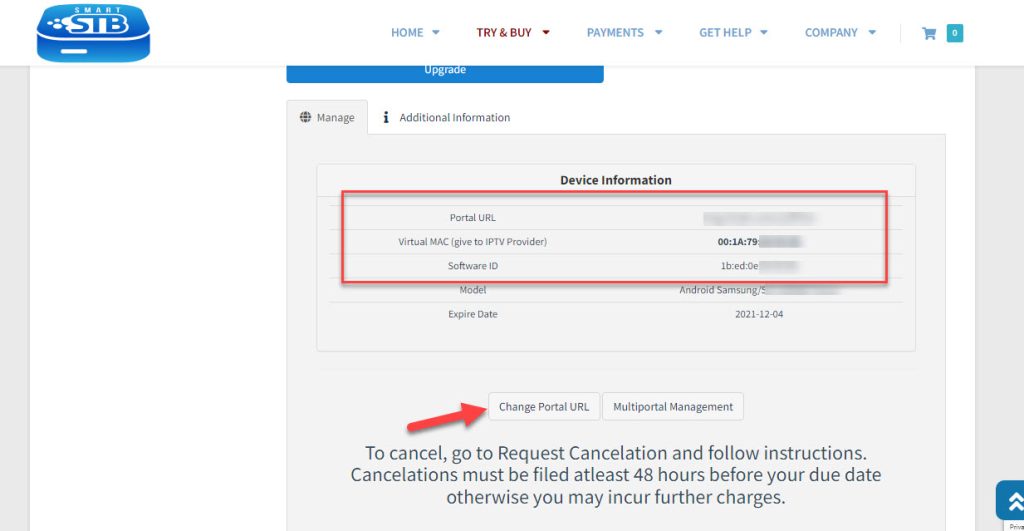
Here you can update the portal URL.
Features of Smart STB
- Categorized live tv list
- Categorized on-demand list
- Electronic Program Guide (EPG) supported
- Program Icons (Picons)
- Fast channel buffering
Let us know in the comments section below about your opinion and feedback concerning this article and help us improve the quality of our articles. Thank you in advance.
Developed by saidiptv.com
Stream Seamlessly with Said IPTV
Looking for a zero-buffering IPTV subscription for your device? Said IPTV delivers over 25,000+ live 4K/FHD channels, full beIN Sports, Botola Pro Inwi, Sky Sports, and a 120,000+ VOD library with instant WhatsApp activation.
Stream 25,000+ Channels with Zero Buffering
Get full access to beIN Sports, Botola Pro Inwi, 4K Cinema, and Netflix series in 5–15 minutes with local Moroccan payments (CIH, Attijariwafa, Cash Plus).
Related Tutorials & Guides
Wired Ethernet vs. 5 GHz Wi-Fi for IPTV: Which Is Best?
When setting up an IPTV service on a Smart TV, Firestick, or Android TV box, achieving a stable connection is critical for smooth, buffer-free streaming. While both Wired Ethernet and 5 GHz Wi-Fi offer more than enough raw speed for 4K and Full HD st
How to Fix IPTV Channels Buffering Only During Peak Hours?
Experiencing smooth, high-quality streams during the day, only for your channels to start buffering, looping, or freezing between 7:00 PM and 11:00 PM, is one of the most common issues with IPTV services. Because this buffering occurs strictly during
How to Test IPTV M3U url in a Web Browser?
Testing an M3U Playlist Link in a Browser If your provider only gave you a single, long M3U Playlist URL, you can test it directly in your browser. Analyzing the Result Developed by iptvhelpcenter.com