How to setup Plex on Apple TV?
Said IPTV Engineering
Said IPTV Technical Architecture Desk
Whether we’re discussing Apple TV, Chromecast, or Roku boxes, the big thing these days is on-demand streaming content. Note: This guide is for the official Plex application for Apple’s tvOS, which limits it to the 4th generation Apple TV and above. What is Apple TV?
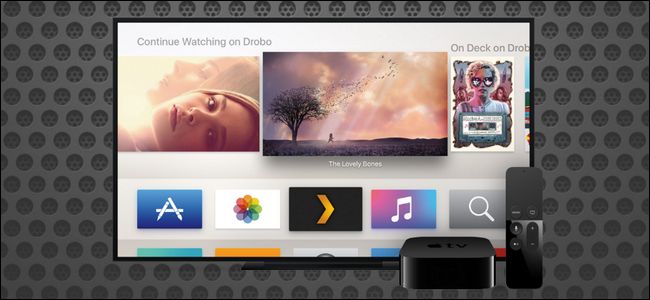
How to Install Plex On Your Apple TV
The user-friendly features of the whole Plex experience really shine through in the installation period. Not only is the Apple TV Plex app elaborate, but the Plex team has made the method of linking the app to your Plex system absolutely painless. Install IPTV on Apple TV via IP Television App.
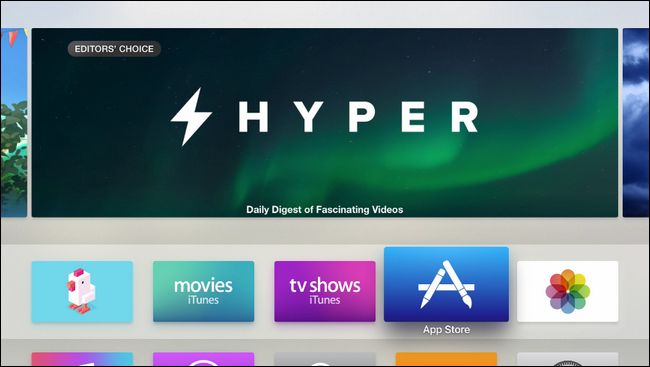
Step 1: To start, fire up your Apple TV and head to the App Store by choosing in on the main screen, as marked below.
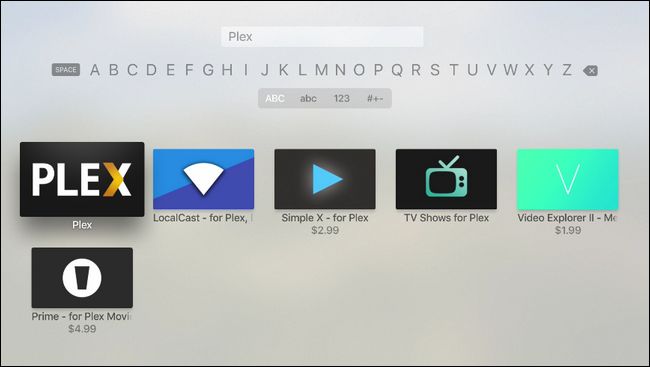
Step 2: Select the search option in the App Store application and search for “Plex”. Be sure to select plain old “Plex” and not any of the similar sounding applications like “Simple X – for Plex”.
Step 3: In the detailed view, as seen below, select the “Install” button.
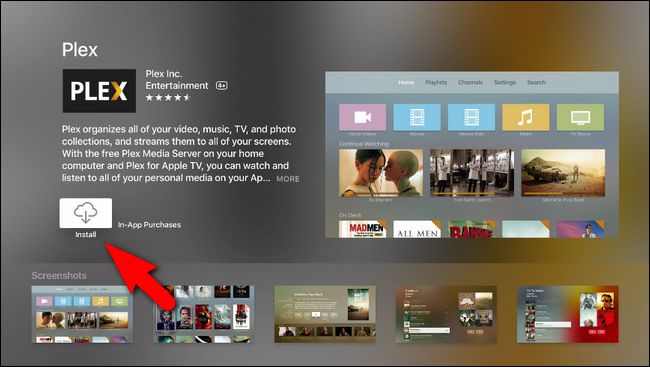
Step 4: Once the installation is complete the “Install” button will turn to “Open”. Click it again to launch the Plex application.
After the Plex splash screen, you’ll be prompted to log into your Plex account. The app will give you a security code, like so:
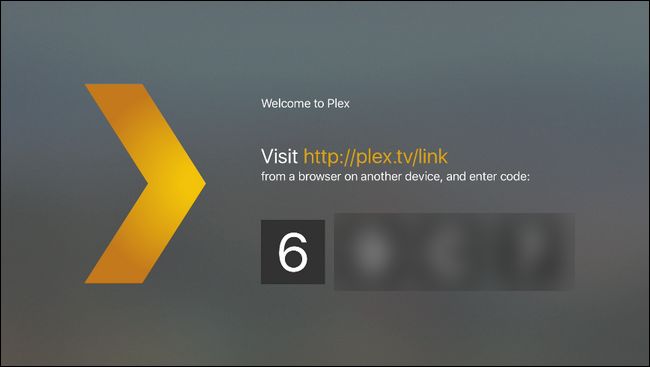
Step 5: Take that four character alpha-numeric code and visit Plex.tv/link and enter the code to link the Apple TV Plex app to your Plex account. You’ll receive nearly simultaneous confirmations on both the website and the Apple TV app thanking you for using Plex.
After the confirmation screen, you’ll see all the Plex media server linked to your account. In the screenshot below you can see our one very-cleverly-named media server “plexmediaserver_1”. Select the server to access the media on it.
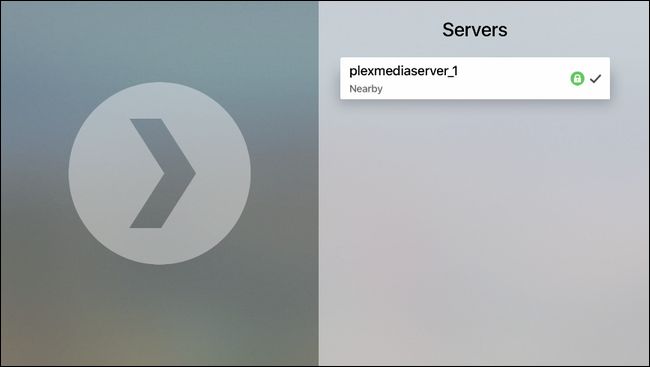
Select the server you wish to connect to and the steps are over, now you can use plex on your Apple TV. Feel free to submit your questions and feedback and help us to improve the quality of our articles and contents.
Developed by saidiptv.com
Stream Seamlessly with Said IPTV
Looking for a zero-buffering IPTV subscription for your device? Said IPTV delivers over 25,000+ live 4K/FHD channels, full beIN Sports, Botola Pro Inwi, Sky Sports, and a 120,000+ VOD library with instant WhatsApp activation.
Stream 25,000+ Channels with Zero Buffering
Get full access to beIN Sports, Botola Pro Inwi, 4K Cinema, and Netflix series in 5–15 minutes with local Moroccan payments (CIH, Attijariwafa, Cash Plus).
Related Tutorials & Guides
Wired Ethernet vs. 5 GHz Wi-Fi for IPTV: Which Is Best?
When setting up an IPTV service on a Smart TV, Firestick, or Android TV box, achieving a stable connection is critical for smooth, buffer-free streaming. While both Wired Ethernet and 5 GHz Wi-Fi offer more than enough raw speed for 4K and Full HD st
How to Fix IPTV Channels Buffering Only During Peak Hours?
Experiencing smooth, high-quality streams during the day, only for your channels to start buffering, looping, or freezing between 7:00 PM and 11:00 PM, is one of the most common issues with IPTV services. Because this buffering occurs strictly during
How to Test IPTV M3U url in a Web Browser?
Testing an M3U Playlist Link in a Browser If your provider only gave you a single, long M3U Playlist URL, you can test it directly in your browser. Analyzing the Result Developed by iptvhelpcenter.com